 MacTidy
Guide / Mac privacy permissions
How to review Mac privacy permissions without getting lost
Review camera, microphone, screen recording, accessibility, Full Disk Access, analytics trails, clipboard data, and app permissions on a Mac.
Sources checked: Apple control what you share on Mac, Apple app access controls, and MacTidy features.
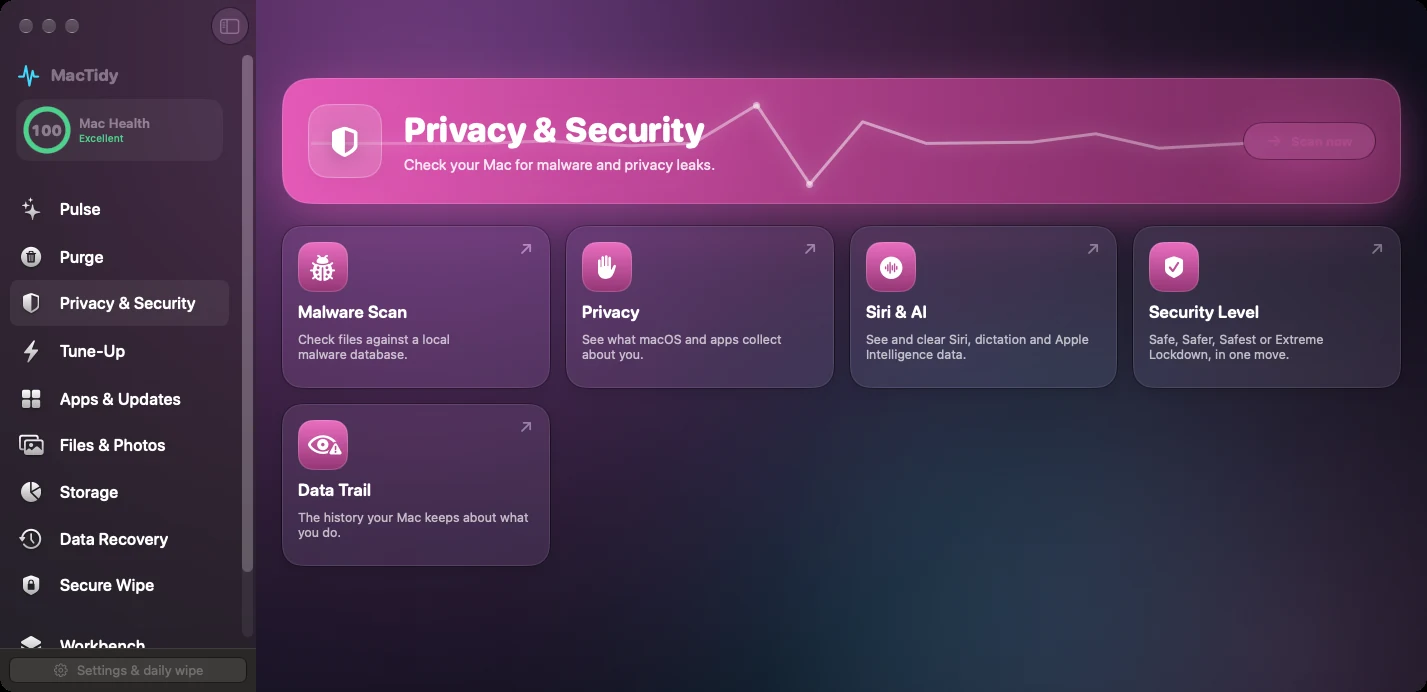
Mac privacy permissions decide which apps can use sensitive hardware and data: camera, microphone, location, contacts, calendars, photos, files and folders, screen recording, accessibility, automation, and full disk access. The problem is not that permissions exist. The problem is that old apps keep permissions long after you stop using them, and System Settings makes you check one category at a time.
What to review first
Start with the permissions that expose the most sensitive data. Camera and microphone are obvious because they capture the room around you. Screen Recording and Accessibility can reveal or control what you do on screen. Full Disk Access can let an app read broad parts of your data. Files and Folders can include Desktop, Documents, Downloads, removable volumes, and network volumes. Location, Contacts, Calendars, Photos, and Bluetooth can also be sensitive depending on your work.
Open System Settings, then Privacy & Security.
Review Camera, Microphone, Screen Recording, Accessibility, Full Disk Access, Files & Folders, Location, Contacts, Calendars, and Photos.
Turn off access for apps you no longer use or do not recognize.
Restart apps after changing permissions so they request access again only when needed.
Uninstall abandoned apps after permission review so their leftovers do not keep confusing the list.
How MacTidy can help
MacTidy's Privacy tab is designed to make the scattered review easier. The source describes reading permission records for camera, microphone, screen recording, location, and full disk access, plus showing local privacy traces such as analytics, diagnostics, recent activity, and other data categories. It can save a Markdown privacy report and, when you choose AI analysis, send the selected privacy context to the AI endpoint you configured. Keep that endpoint local if you do not want this context leaving the Mac.
There is an important boundary: macOS controls permission grants. MacTidy can report and guide, but the user grants sensitive permissions in System Settings. That is a good thing. A privacy tool should not silently give itself access or remove context from the decision.
What permissions mean in practice
A permission is not always suspicious. Zoom needs camera and microphone. Backup tools may need Full Disk Access. Automation utilities often need Accessibility. Developer tools may need access to project folders. The cleanup target is stale or unexplained access: an app you uninstalled, a trial you no longer use, a browser you do not use for calls, or a helper that appears under a vendor name you cannot tie to active software.
Privacy cleanup limits
Turning off a permission does not delete the data an app already stored. It only changes future access. To remove stored data, uninstall the app, review leftovers, and check app-specific folders. For Photos, manage access through privacy settings and the Photos app. Do not delete inside the Photos library package as a shortcut.
Also expect permissions to return when you reinstall an app or restore from backup. Keep the review practical: remove stale access, keep access that supports a current workflow, and re-check after major app installs. Meeting apps, screen recorders, developer tools, and backup utilities are the categories most likely to ask again.
Review rhythm. Check permissions after installing video tools, meeting apps, screen recorders, VPNs, backup software, or anything that asked for Full Disk Access.
Related guides
Use uninstall Mac apps for stale software, Mac security settings for broader hardening, and malware scan when an unknown helper has sensitive access.
FAQ
Which Mac permissions are most sensitive?
Full Disk Access, Accessibility, Screen Recording, Camera, Microphone, Location, Photos, Contacts, and Files & Folders deserve the closest review.
Can MacTidy grant permissions automatically?
No. macOS requires the user to grant sensitive permissions. MacTidy can report status and open the right area for review.
Does turning off a permission delete app data?
No. It blocks future access. Remove stored data separately by uninstalling the app and reviewing leftovers.
How often should I audit permissions?
Review them after installing new tools and every few months, especially for meeting apps, screen recorders, backup utilities, and old trials.