 MacTidy
Features
One app, not nine
A Mac cleaner, storage analyzer, duplicate file finder, uninstaller, local malware scan, security checklist and secure deletion in one app. Cleanup screens show what they found with a size beside each item, then wait for you.
Pulse Mac health scan
One scan across the whole Mac: space to reclaim, updates waiting, security settings, disk and memory. It ends with a plain list, not a score you cannot act on.
Purge Mac junk files
Caches, logs, old downloads, developer build output and leftovers from apps you removed years ago. Every item shows its size and what it was for. See also Mac disk cleanup and cache cleanup.
Mac security settings
Five named levels with the cost of each setting spelled out. MacTidy makes the changes macOS allows and walks you through the rest. How it works and what to check.
Local malware scan
Checks what starts itself at login, what you downloaded recently and any configuration profiles. Flags unsigned code, odd locations and fingerprints on a known-malware list. What it can and cannot catch and how the scan works.
Privacy permissions
Which apps can reach your screen, microphone, camera, location, photos and full disk. Clears your clipboard, your Siri and AI history, and the recordings sitting on the drive. Review Mac privacy permissions.
Tune-Up
Switches off the startup items you forgot about and frees inactive memory. Shows what is running and what stopped responding.
Uninstall Mac apps and leftovers
Uninstalls apps properly, leftovers and all. Updates what you have from Homebrew and the App Store, and finds universal binaries you can thin. Read the uninstall guide.
Duplicate file finder
Duplicates, large files, and photos saved twice. With a preview, because a filename is not enough to decide. Find duplicate files on a Mac.
Mac storage analyzer
A map of the drive, so you can see what is actually using the space rather than guessing at folders. Understand Mac storage.
Secure Wipe
Permanently removes selected files where macOS and the drive type allow it, clears related local snapshots when possible, and explains when encryption matters more than overwriting. For when deleting is not enough.
Workbench
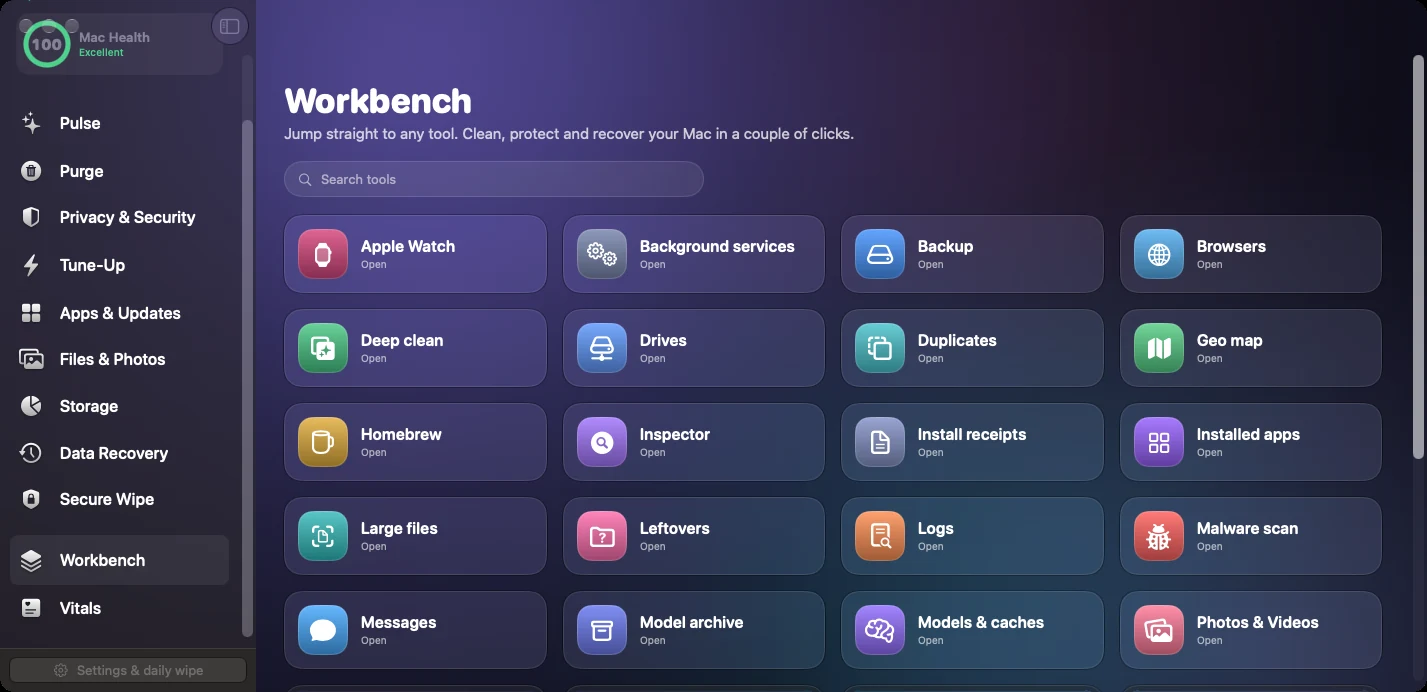
Every tool in one searchable grid, including the smaller ones: trace search, install receipts, background services, browser installs.
Always there
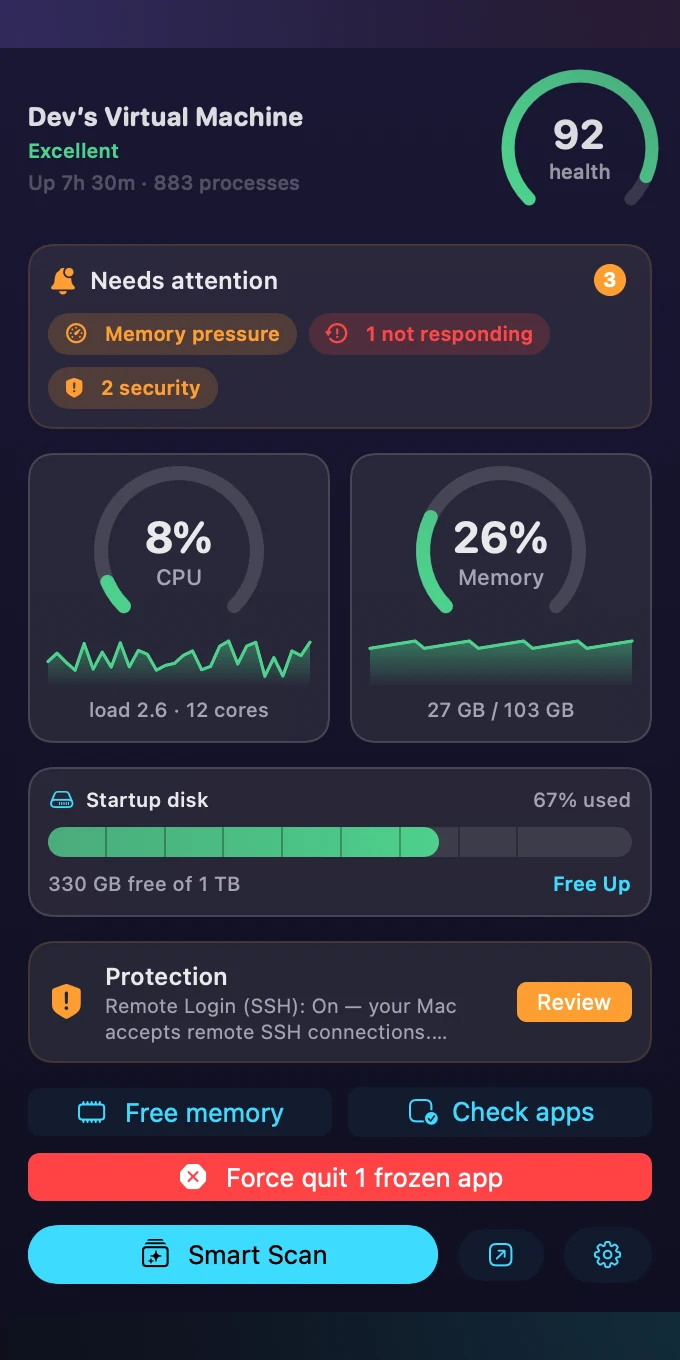
A readout in the menu bar
Health, CPU, memory, disk and whether your protections are still on. It updates while you work, and you can free memory or check for frozen apps without opening the app itself.
If something needs attention it says what, and one click takes you to it.
The rule
The list comes first for cleanup
This is the part worth repeating: cleanup tools show what they found before they remove it.
Cleanup screens end in a list with a tickbox and a size. Untick what you want to keep. The button at the bottom says exactly what it is about to do.
MacTidy feature FAQ
Which Mac cleanup tasks should I run first?
Start with caches, logs, old downloads and large files, then move to app leftovers and duplicate files. MacTidy groups these so you can free up disk space without guessing. The deeper walkthrough is in Mac disk cleanup.
Can MacTidy uninstall apps and remove leftovers?
Yes. The uninstaller finds app bundles and related support files, then shows the leftovers before removal. Use it when dragging an app to Trash leaves data behind. See uninstall Mac apps.
Does the duplicate file finder remove files automatically?
No. It finds duplicate sets and shows previews where possible so you can decide what to keep. That matters for photos, downloads and project folders where two files can look similar but serve different jobs.
Does MacTidy include data recovery?
No. MacTidy does not recover deleted files, read iPhone or iPad backups, or analyse logs. If you deleted something today, stop using the drive and check Trash and Time Machine first.