 MacTidy
Guide / Mac storage analyzer
How to use a Mac storage analyzer to see where space actually went
Use a Mac storage analyzer to inspect categories, drill into large folders, and distinguish personal files from rebuildable clutter.
Sources checked: Apple free up storage, Apple storage categories, and MacTidy features.
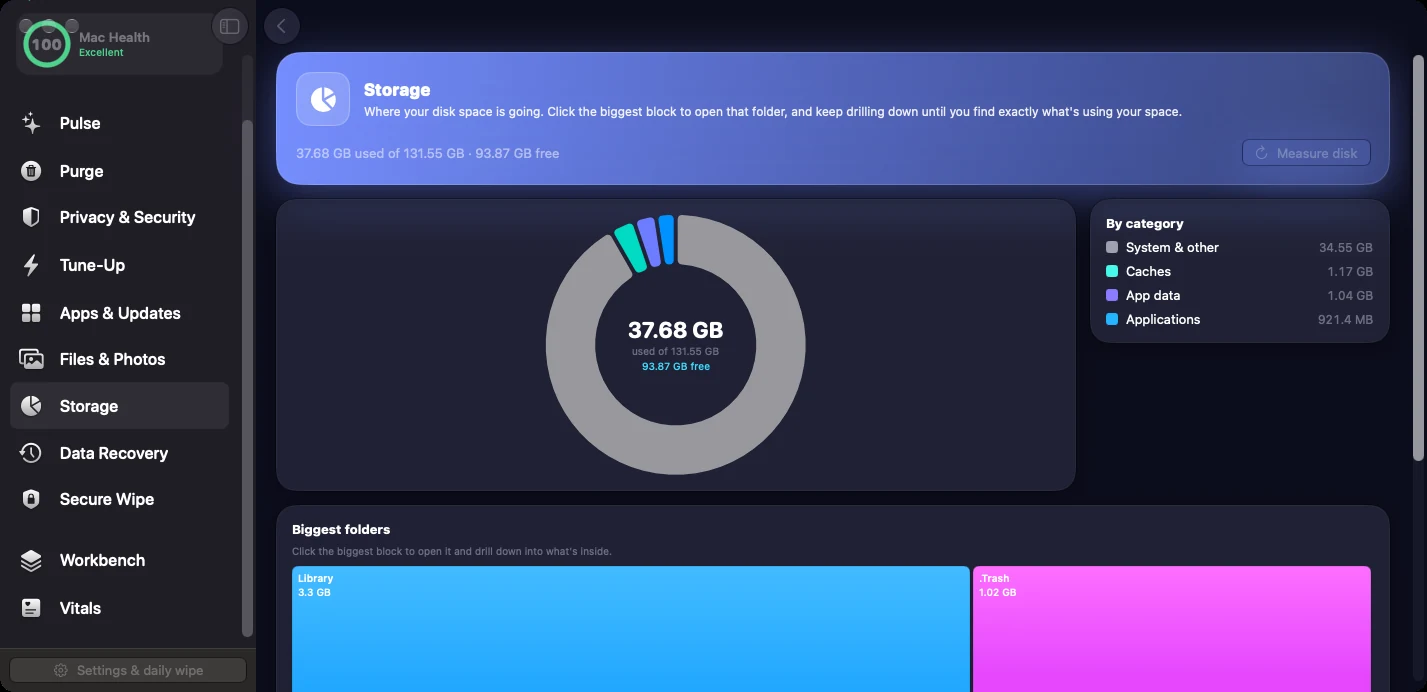
A Mac storage analyzer answers a simple question: where did the space go? That question matters because the Finder can make storage feel scattered. A 60 GB virtual machine, a 40 GB Photos library, a 25 GB Xcode folder, and hundreds of small cache folders all create the same warning: your disk is full. The fix depends on which one is true.
Start broad, then drill down
Apple's Storage settings are the broadest first view. They show categories such as Applications, Documents, Photos, Music, Mail, and System Data, plus recommendations for freeing space. Use that screen to avoid chasing tiny files while a huge folder sits untouched. Once you know the category, use Finder or a storage map to inspect the largest folders inside it.
A useful analyzer should make size, location, and ownership obvious. Size tells you whether the item is worth your time. Location tells you whether it is a normal file, an app support folder, a cache, a project artifact, or an app-managed library. Ownership tells you which app or workflow will be affected if you delete it.
How to read the biggest categories
Downloads: look for DMGs, ZIP files, installers, exported media, and duplicate archives.
Applications: remove apps you recognize, then review leftovers separately.
Developer: inspect Xcode, simulators, package caches, Docker, and project build output.
Photos and media: manage from the owning app. Do not delete inside library packages by hand.
System Data: treat it as a clue, not a target. It can include caches, logs, snapshots, app support, and local data.
Where MacTidy helps
MacTidy's Storage view measures common roots and lets you drill into folders so the largest items float to the top. The source shows a cache for measured drill-down results and category roots such as Applications, Library, Developer, Downloads, Movies, Music, Pictures, and Photos. That structure is useful because it keeps navigation fast while still showing real paths.
Use MacTidy to decide where to spend the cleanup effort. If the storage map says Downloads is huge, you probably need file review. If Developer is huge, go to the developer cleanup workflow. If Pictures is huge, switch to photo management and avoid deleting app-library internals. If Application Support is huge, inspect which app owns the space before removing anything.
Storage analyzer limits
An analyzer can show size, but it cannot always show importance. A folder might be rebuildable cache, a legal archive, a client's media, or a virtual machine you use every day. It also may not fully explain purgeable space, iCloud local copies, Time Machine snapshots, or app-managed libraries. Treat the map as a compass, not a delete button. If the largest folder is unfamiliar, open the owning app or project before removing files from Finder.
Storage maps are also good for proving what cleanup cannot fix. If most space is in a Photos library, iPhone backup, virtual machine, or active source checkout, cache cleanup will only nibble around the edge. Move, archive, or manage the owning data instead of repeating the same scan.
Decision rule. Delete the largest files only when you know what creates them, whether they can be rebuilt, and where the current copy lives.
Related guides
After mapping storage, use Mac disk cleanup for a safe order of operations, clear Mac cache for rebuildable data, and developer cleanup for build tools and package managers.
FAQ
What is System Data on a Mac?
It is a broad storage category that can include caches, logs, local snapshots, app support files, and other data macOS does not place in a simpler category.
Should I delete the largest folder I find?
Only after you know what owns it and whether it is rebuildable. Large personal files and app libraries may be more important than their size suggests.
Can MacTidy show folder sizes?
Yes. The Storage view measures common locations and supports drill-down so large folders are easier to review.
Why do Apple Storage and Finder numbers differ?
They may group purgeable data, iCloud files, snapshots, and app-managed data differently. Use both views as evidence, then inspect paths before deleting.