 MacTidy
Guide / find duplicate files Mac
How to find duplicate files on a Mac without losing the keeper copy
Find exact duplicate Mac files safely with size grouping, hashing, previews, and a keeper-first cleanup workflow.
Sources checked: Apple free up storage, Apple find and delete files, and MacTidy features.
Duplicate files feel simple until you see the list. Two files can share a name and be completely different. Two photos can look similar but have different edits. Two downloads can be byte-for-byte identical, yet one lives in a project folder where a build script expects it. The safest duplicate cleanup is evidence based: match exact content, keep the best copy, and avoid special libraries that should be managed by their own app.
Use exact duplicates for cleanup
The reliable target is an exact duplicate: same file contents, confirmed by hashing or another byte-level comparison. Names, dates, and sizes are clues, but they are not enough on their own. A file named final.pdf in two folders might be different revisions. A 12 MB image might have the same dimensions but a different color profile or edit history. Exact matching keeps the cleanup focused on real waste.
Manual steps before deleting duplicates
Start in ordinary folders such as Downloads, Desktop, Documents, Movies, and exported project folders.
Sort by size to find clusters that matter. Tiny duplicates rarely justify risk.
Open both copies before deleting if the file is personal, client-facing, or project-related.
Keep the copy in the folder with the clearest purpose and newest surrounding project context.
Move duplicates to Trash first. Empty it only after the related app or project opens normally.
Where MacTidy helps
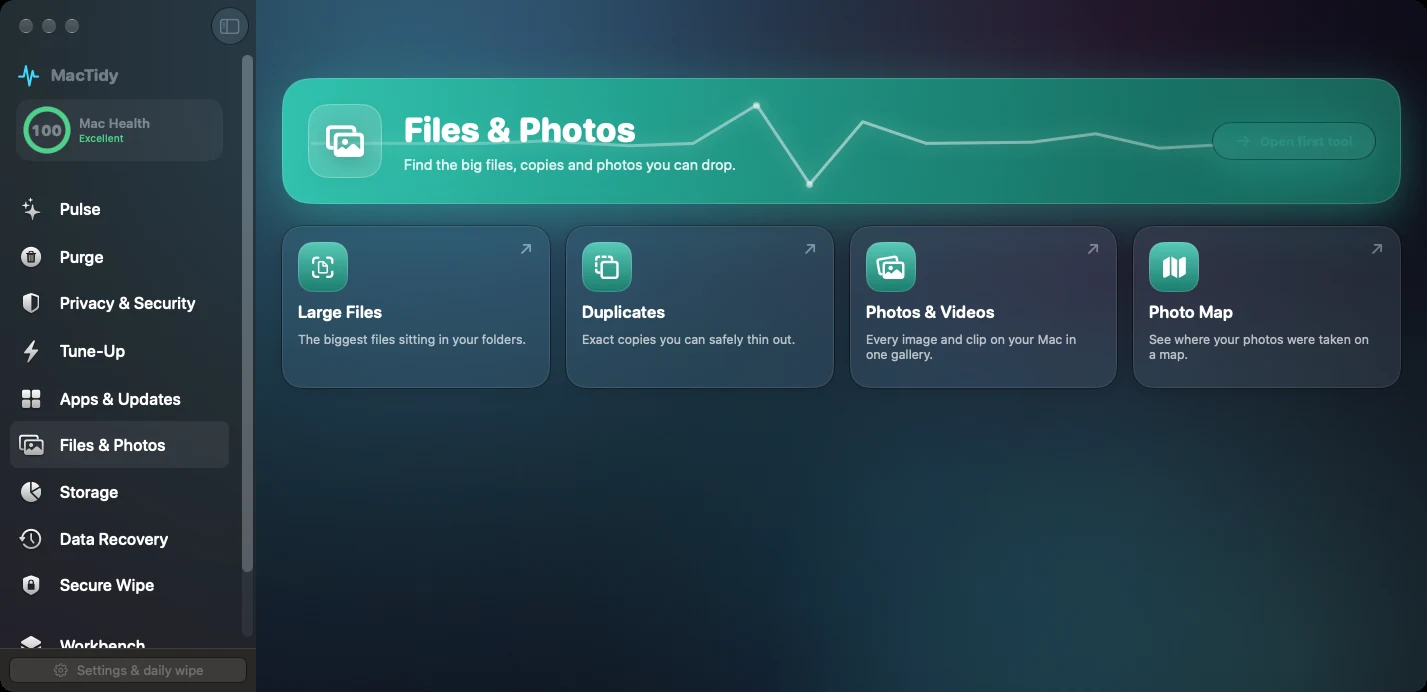
MacTidy's duplicate workflow is designed to group candidates so you can review them before removal. Product evidence in the source points to hash-based matching rather than name-only guessing. That is the right foundation. The app can surface duplicate downloads, copied media, repeated archives, and forgotten exports, then let you choose the keeper from each group.
Use the preview and path together. A duplicate in Downloads is usually easier to remove than one inside a source repo, a Lightroom catalog, a package manager cache, or an app support folder. If the duplicate is part of a project, check whether it is generated output before removing it. Generated files can usually be rebuilt, but only if the project still has the tools and inputs required. When in doubt, keep the copy closest to the active project and remove loose downloads or exports first.
Be careful with Photos
Do not clean duplicates by opening the Photos library package and deleting files inside it. Photos uses a library database, original assets, edits, thumbnails, and metadata together. Removing internals can corrupt the library or break edits. If the duplicates are in Photos, use Photos features, export reviewed copies, or manage the whole library through Apple-supported workflows. A general cleaner should not recommend deleting Photos package internals.
Similar photos are a different problem
Near-duplicate photos, burst shots, screenshots, and resized exports require human judgment. A tool can group them, but it cannot know which crop, edit, or resolution you want. Treat similar-photo cleanup as curation. Exact duplicate cleanup is storage maintenance; similar-photo cleanup is a review task.
Low-risk win. Duplicate DMGs, ZIP files, downloaded installers, and exported videos are often the best first pass because they are easy to recognize and rarely needed in multiple folders.
Related guides
Use Mac storage analyzer when you need to find the largest duplicate-heavy folders first. For old installers and archives, follow Mac disk cleanup. For photo storage, avoid package internals and review with the app that owns the library.
FAQ
What is the safest duplicate file match?
A byte-for-byte or hash-confirmed match is safest. File names and sizes alone are only clues.
Can I delete duplicate photos inside the Photos library?
No. Do not delete files inside the Photos library package by hand. Manage Photos from the Photos app or Apple-supported library workflows.
Which duplicate should I keep?
Keep the copy in the folder with the clearest purpose, the active project, or the app-managed location. Remove loose copies from Downloads first.
Does MacTidy auto-delete duplicates?
The duplicate workflow is review based. You inspect grouped candidates and choose what to remove.