 MacTidy
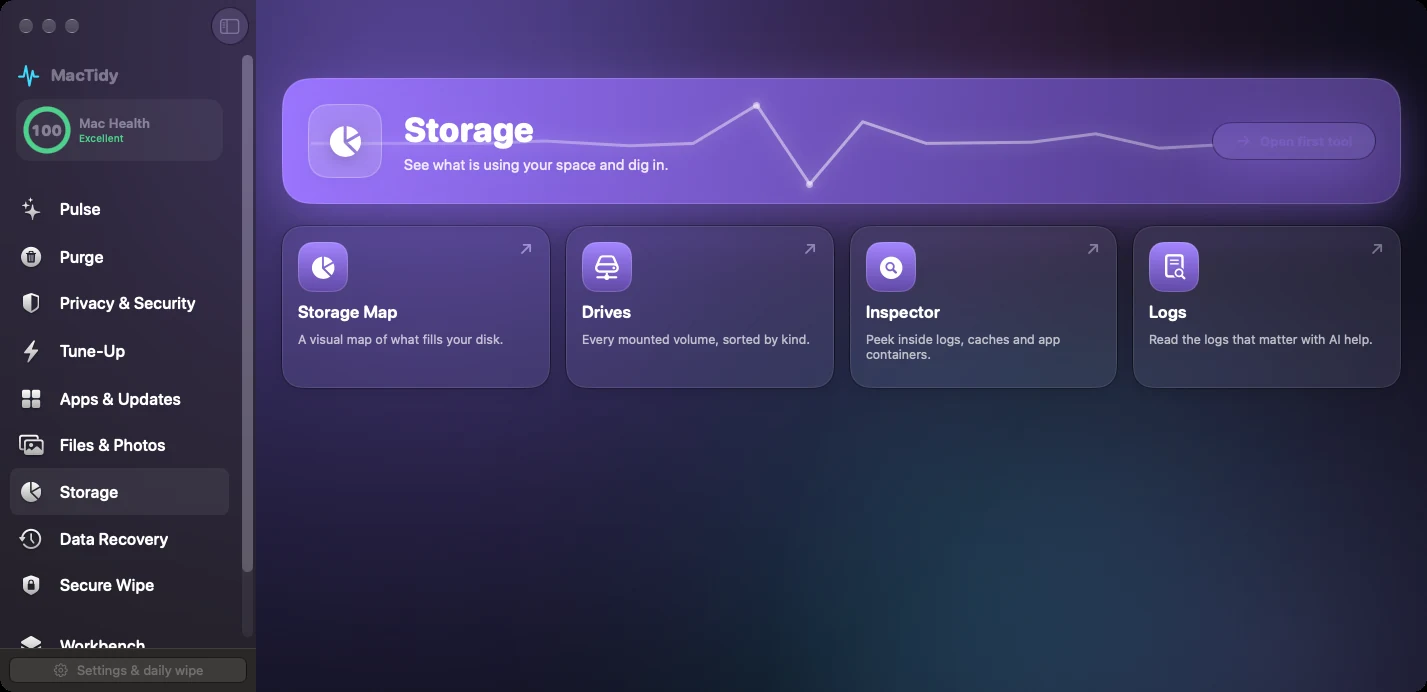
Storage Map
See what is using Mac storage before you delete anything.
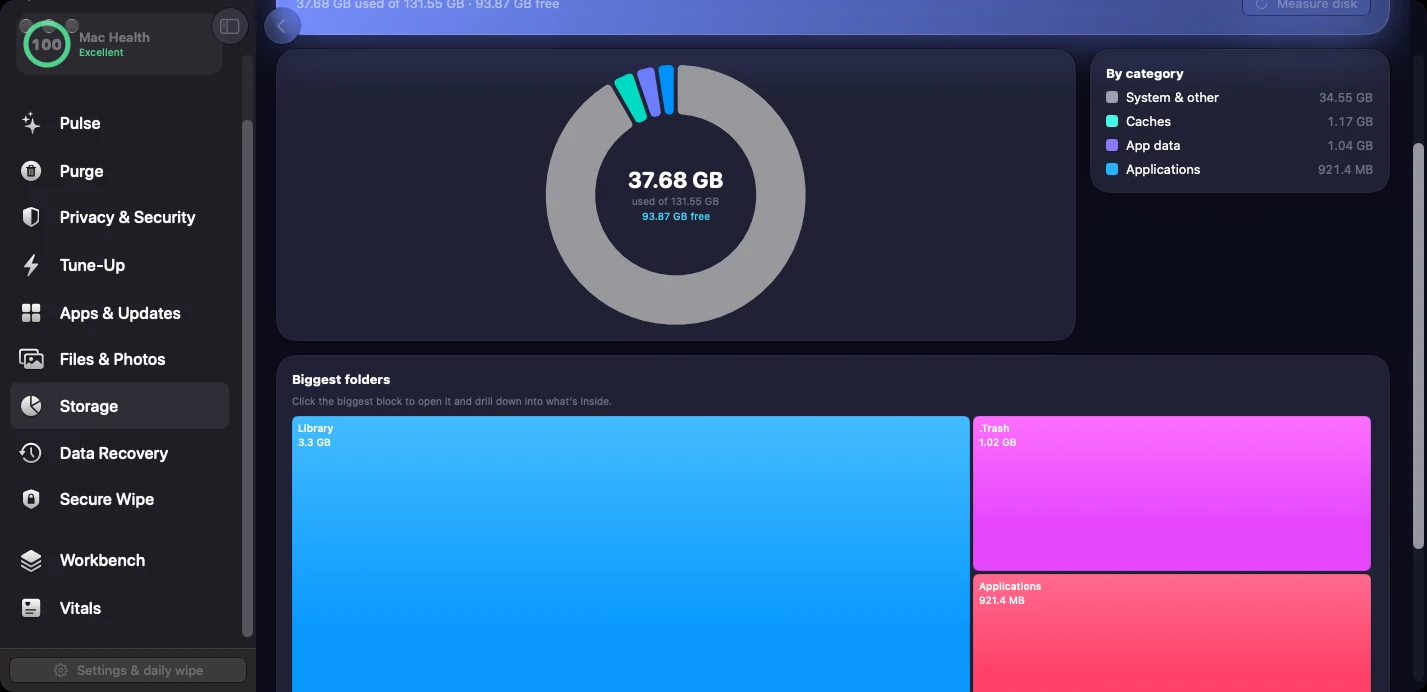
Storage Map is the MacTidy storage analyzer. It helps you understand disks, mounted drives, folders, logs and large storage patterns before you decide what to clean.
Storage map
A visual disk map helps explain where space went, which is faster than opening folders one at a time.
Drive view
Mounted volumes are listed by kind, so internal, external and secondary drives can be understood separately.
Inspector and logs
Inspect app containers, logs, caches and system signals when storage use needs a closer look.
Storage analysis before cleanup
People often start with "clean my Mac" when the real question is "what is using all my storage?" MacTidy treats those as related but different jobs. Storage Map shows where to look; Clean My Mac and Files & Photos handle cleanup.
Use it before deleting folders you do not recognize, before buying more iCloud storage, or before moving archives to another drive.
Storage FAQ
Is Storage Map the same as cleanup?
No. Storage Map explains disk usage. Cleanup happens in Clean My Mac, Files & Photos or Secure Wipe after review.
Can it read every folder?
macOS permissions still apply. Some locations require Full Disk Access or explicit user selection before an app can inspect them.